Uploaded Photo Rotated? Blame Exif — Here's the Full Explanation
Sometimes a photo looks fine on your phone or computer, but rotates after being uploaded. This happens due to the Exif orientation metadata.
You have probably seen this: a photo looks perfect in your gallery, but after sharing or uploading it, it is suddenly rotated 90 degrees or flipped upside down. This is not a bug — it is a mismatch between how Exif orientation tags are written and how different applications interpret them.
At n1wd.com, this is one of the most frequently reported image issues. This article breaks down the root cause once and for all, along with fixes that actually work.
Issue Description
Many users find that a photo looks fine in their local gallery, but appears rotated or upside down after uploading. This is usually caused by the Exif orientation metadata, not by file corruption.
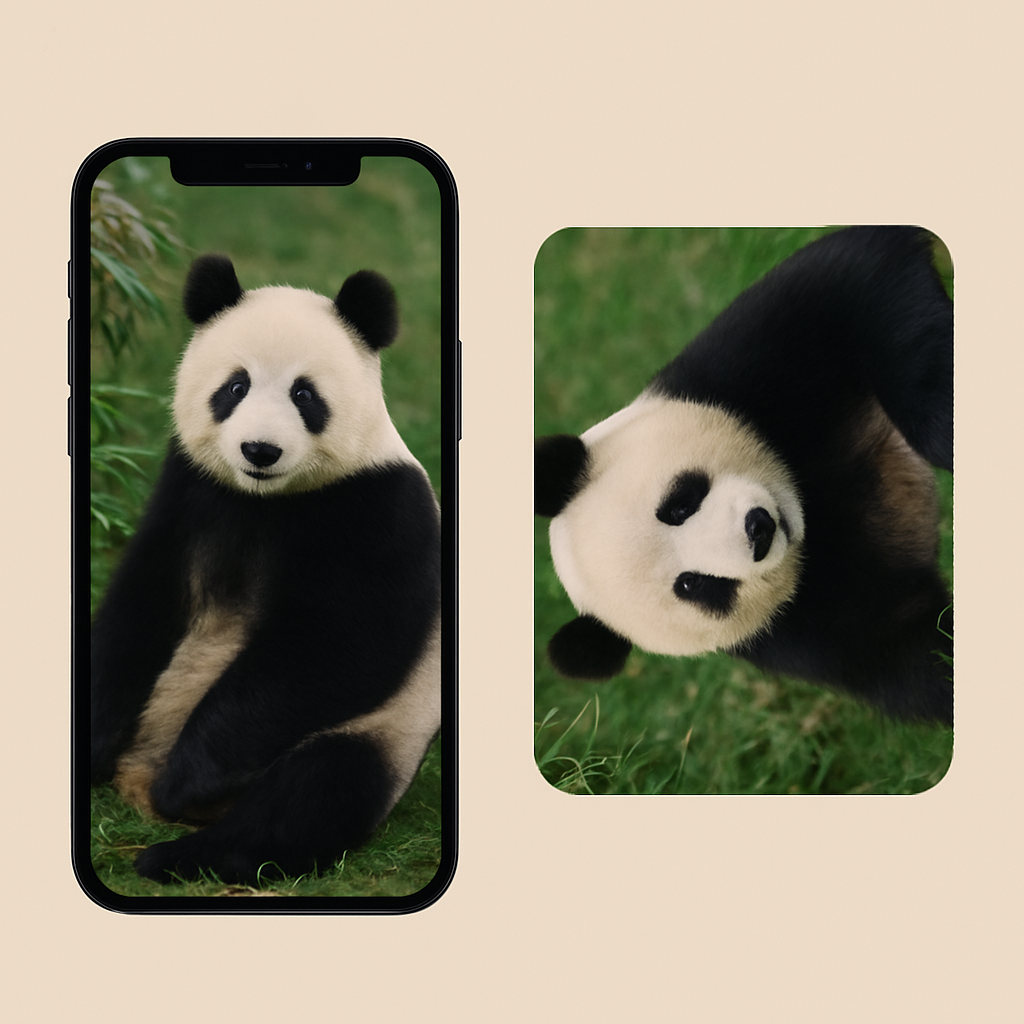
Exif Orientation Data
When you take a photo, the device often saves an orientation tag instead of rotating the actual pixels. Common values include:
- 1 = Normal (no rotation)
- 3 = Rotate 180°
- 6 = Rotate 90° clockwise
- 8 = Rotate 90° counterclockwise
Whether software reads and applies this tag determines if the photo looks correct.
Why the Problem Happens
- Local Gallery: Most mobile and desktop viewers read Exif orientation and display the photo correctly.
- Websites/Systems: Some ignore Exif metadata and just show the raw pixel data, making the photo appear rotated.
How to Fix
- Re-save: Open in an editor (e.g., Photoshop) and export to remove the orientation tag.
- Use Tools:
- Exif Auto Orient: Automatically corrects orientation based on Exif data.
- Exif Viewer: Lets you check Exif metadata, including orientation.
From the n1wd.com perspective, the Exif orientation problem is a legacy of inconsistent standards. Until universally resolved, the most reliable fix is to rotate and re-save the image before sharing, embedding the correct orientation into the pixel data itself rather than relying on a tag.
The Permanent Solution: Bake Rotation Into Pixels
The only fully reliable fix is to rotate the pixel data itself and delete the Exif orientation tag. In Photoshop or GIMP, rotate the image to the correct orientation and use "Export As" (not "Save") — most editors reset the Exif orientation tag on export. From the command line: open the image in an editor, rotate it correctly, then save. Relying on viewers to interpret the Exif tag correctly will continue producing inconsistent results across platforms indefinitely.